
Open the backup browser
- Open Accounts and select the account.
- Click Browse Backups in the account header.
- Use the mailbox sidebar, message list, and reading pane just as you would in a mail app.
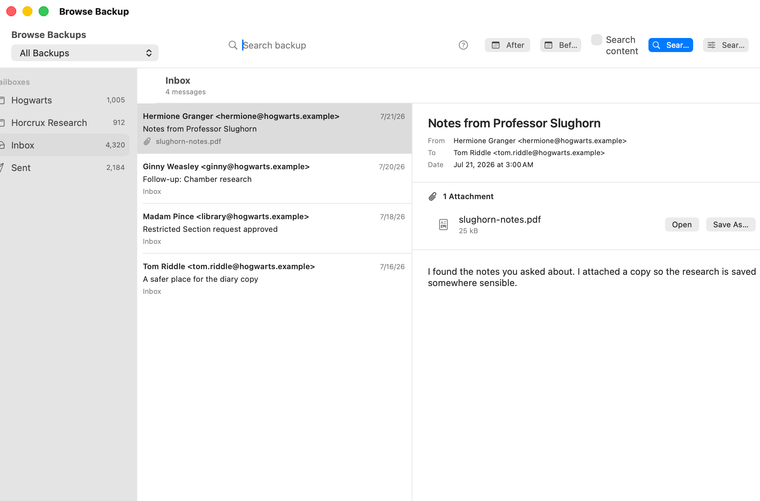
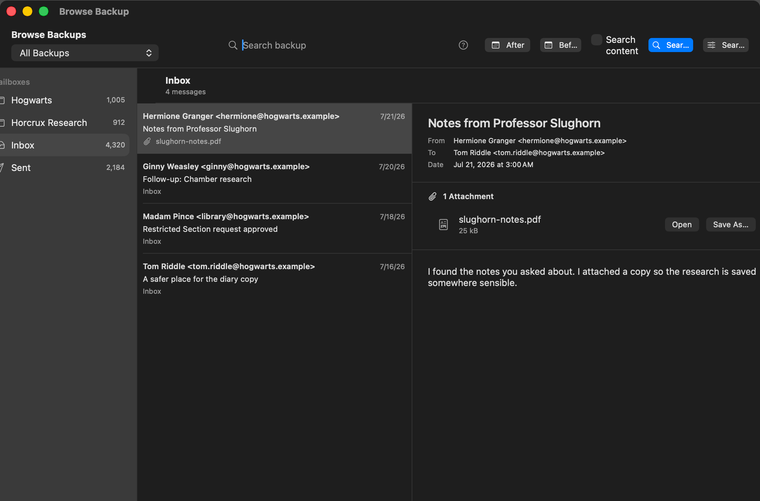
The browser stays tied to the account that opened it. Changing accounts closes that browser window so mail from two accounts cannot become mixed in one view.
Choose which saved backup to browse
| Backup type | Default browser scope |
|---|---|
| Backup History | All Backups, with repeated messages shown once using their newest saved details. You can choose one dated backup instead. |
| Email Archive | Email Archive, containing every message Horcrux has retained. |
Read messages and attachments
Select a mailbox, then select a message. Horcrux displays ordinary headers and either plain text or HTML. Remote images remain blocked unless you allow them for that message or the current browser session.
With more than one Backup Location, Horcrux can read the selected message from another complete copy when Primary cannot supply it. See automatic read fallback across locations.
Attachments appear as rows with their name and size. You can open an attachment or save it to a location you choose. For a local Backup Location, Show in Finder reveals the actual durable .eml file. Remote messages use a bounded local preview cache and do not show that Finder action.
Search message details
The search field covers every mailbox in the selected browser scope. Press Return or click Search to submit. By default Horcrux searches saved message details, which is fast and does not need to read every message body.
| Search | Example |
|---|---|
| Words or a phrase | quarterly report or "meeting notes" |
| Sender | from:slughorn |
| Subject | subject:horcrux |
| Mailbox | mailbox:"Horcrux Research" |
| Attachment | has:attachment or attachment:notes.pdf |
| Date | after:2026-01-01 before:2026-07-01 |
| Exclude a term | riddle -diary |
Optionally search inside message contents
Open Search Settings from the browser and enable content search. Horcrux reads saved message bodies from the Primary or another complete Backup Location to build an optional index in the Horcrux Library. The browser then offers Search content.
The content index is only a search helper. Deleting it disables body search until it is rebuilt, but does not delete saved emails, attachments, backup history, or ordinary sender and subject search.
Understand missing or deleted messages
If a saved file is not currently available, the reading pane explains whether the message is still being saved, belongs to an incomplete backup, or is genuinely missing.
When a saved message no longer exists in the latest source view, Horcrux can show Missing from source with an Undelete action. Backup History checks the latest catalog membership; Email Archive uses the durable missing-from-source state recorded during backup. Undelete restores the saved copy to its last-known mailbox and avoids duplicates by Message-ID when the server supports that check.