
Run a backup now
- Open Accounts and select the account.
- Click Run Backup.
- Keep the Mac online and keep the selected local storage available.
A manual backup works even when automatic backups for that account are paused.
Scheduled backups belong to each account
Open Manage Account, then Schedules, to choose how often one account runs. Backup History creates at most one dated backup each day, so it supports daily or slower schedules. Email Archive can also run every few hours. Evaluation backups run manually; automatic schedules are available after purchase.
Horcrux reconciles missed work after launch, wake, sign-in, network return, or storage reconnection. Several accounts can run safely without allowing one account to perform conflicting work at the same time.
Follow current progress
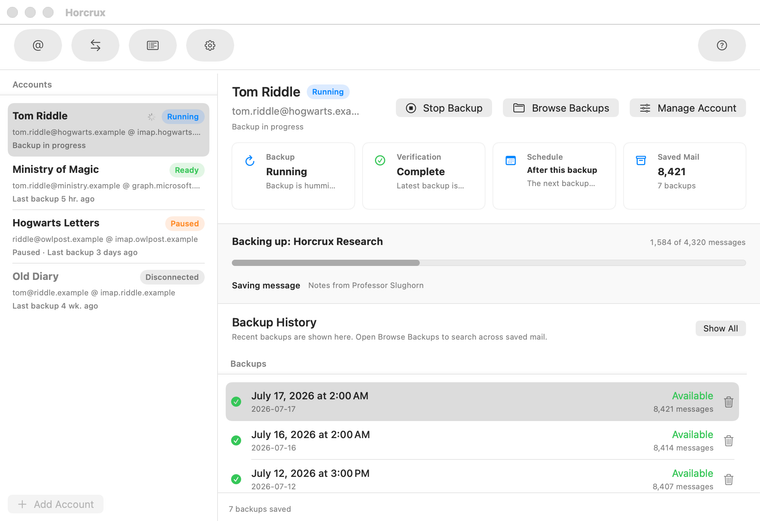
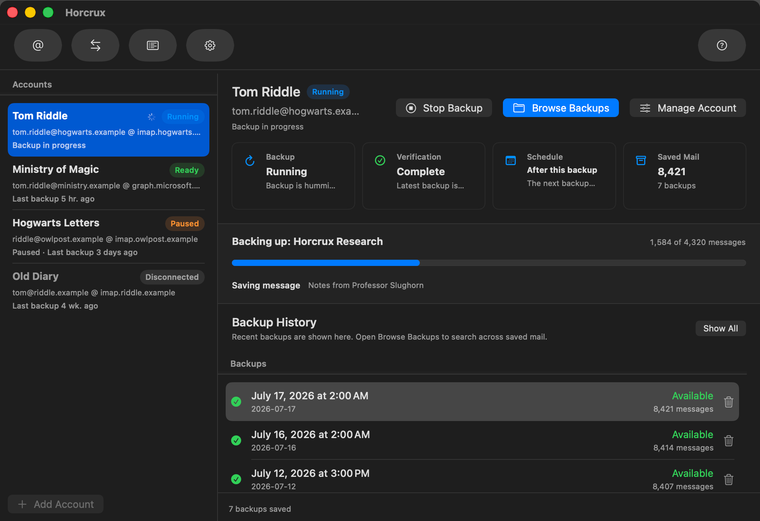
Long maintenance tasks and migrations can offer Continue in Background. The work keeps running and remains visible in Jobs. Closing the main window can also leave scheduled backups running when Run Application in Background is enabled.
Jobs explains what happened
Jobs is the history for backups, verification, indexing, migration, repair, Backup History cleanup, and Backup Location copies. Select a job to see its status, summary, and human-readable log.
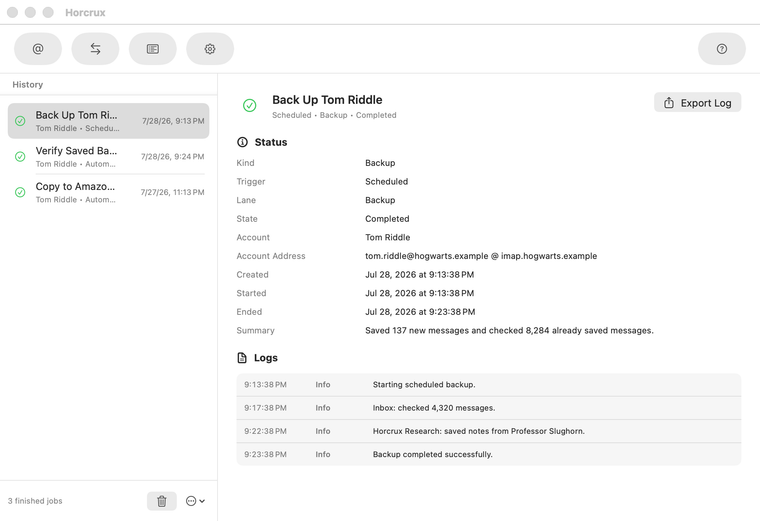
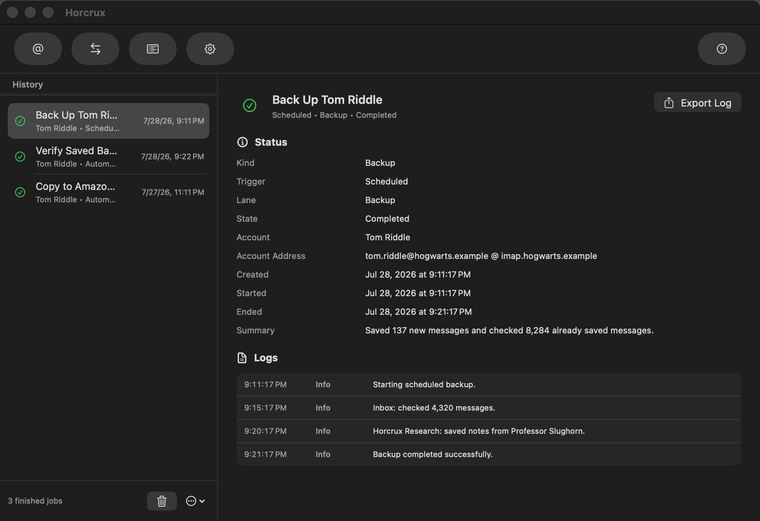
- Queued: waiting for capacity or for other work on the same account to finish.
- Running: active now and usually stoppable.
- Completed: finished successfully.
- Needs Review: finished enough to keep progress, but needs a decision or retry.
- Failed: stopped with a problem that the detail pane explains.
You can export a selected job and its log as a text file for support. Finished history can be pruned or cleared without changing any backup.
When a job fails
Read the summary first, then the latest warning or error in the log. Common causes are an expired account authorization, an unavailable backup location, a disconnected network, or provider throttling.
Fix the reported cause and run the action again. Safe read-side work retries automatically, and completed backup progress is reused where possible. With multiple locations, one location can need attention while another has completed the backup successfully; see how multi-location results are committed.